
Managing multiple WordPress sites from a single dashboard makes management easier. But if one site fails, it can affect the whole network. So a strong backup routine protects every site. In this blog, we discuss two methods for backing up WordPress Multisite. If you run a Multisite, this guide helps keep your network safe and steady.
Keeping a WordPress Multisite safe is a big task. One mistake can bring down the whole network. Backing up a Multisite is different from backing up a normal WordPress site. Many users lose data when they set up backups the same way as a regular WordPress install.
Backing up WordPress Multisite may seem complex at first, but it gets easier as you go. Just follow the right steps, use the right tools, and have a clear plan. Once you understand how the network stores its files and database tables, the process is simple and safe.
In this blog, we will explore what makes a multisite backup unique and how to create a safe backup. We will also discuss how to avoid common problems. So, let’s begin!
What is WordPress Multisite and Why Should You Back it Up?
WordPress Multisite lets you manage multiple sites from one central dashboard. So instead of logging into each site individually, you can update, create backups, and maintain your sites from a single dashboard.
With Multisite, you set up WordPress one time, then build new sites inside that setup. Every site uses the same core files, themes, and plugins, so you don’t have to manage them separately. Each site keeps its own database tables and media library. This lets every site stay independent while still running under one shared system.
Why Should You Backup WordPress Multisite?
When you run a WordPress Multisite, your entire network depends on a single system, which means having a backup plan is crucial.
One Issue Can Affect the Whole Network
A Multisite setup connects all your sites under one installation. If a hacker breaks in, a plugin fails, or the server crashes, the damage affects all sites. It can impact every subsite. Therefore, regular backups are essential.
Backup Protects Your Data
A backup is a stored copy of your database and files. It holds your content, settings, users, and the network structure. In case of trouble, you can quickly restore everything. It keeps your work intact and your sites stable. It ensures that your users encounter no issues.
Multisite Has Higher Stakes
Managing multiple sites in one place is convenient but comes with more responsibility. If there is a network issue, every site goes down with it. A good backup routine gives you control and peace of mind, letting you recover quickly and keep your entire network running smoothly.
In short, WordPress Multisite allows you to run multiple sites from a single installation, while each site retains its own data, making management simple and centralized. Because the entire network relies on a single system, a single failure can bring down every site. A consistent backup routine is essential to keep your data safe and your network stable.
If you want your Multisite network handled with care, or you need someone who can set up secure backup routines, you should hire WordPress developers to help you save time and protect your entire system.
How to Backup WordPress Multisite?
There are two ways to create a backup of your WordPress Multisite. You can choose either of them, whichever fits your requirements best.
Backup Files and Database Manually
If you prefer full control or want a free method, you can backup your Multisite manually. It requires more effort but helps you understand how your network is structured behind the scenes.
You must backup both the files and the database. Skipping either will result in an incomplete backup.
Step 1: Download Your Files Using FTP or File Manager
Log in to your hosting dashboard and open the File Manager (or use an FTP client). Navigate to your site’s root folder, often named public_html. Select all files and compress them into a ZIP archive. Once the ZIP is created, download it to your computer.
This file contains your themes, plugins, uploads, and core files, everything your network needs to run.
Step 2: Export Your Database Using phpMyAdmin
In your hosting dashboard, open phpMyAdmin. Select the database used by your Multisite network. If you’re unsure which one is correct, check the wp-config.php file.
Click Export at the top. Choose Custom if you want more control, and then set the output to Save to file.
Select a compressed format like zip or gzip to reduce the file size. Click Export to download your database backup. This file holds all your content, users, settings, and Multisite structure.
Restoring a Manual Backup
To restore manually, upload your files back into your server using File Manager or FTP. Then, create a new database and import your SQL file through phpMyAdmin. Update your wp-config.php file to match the new database details.
Once everything is in place, your network should come back online.
Backup a WordPress Multisite Using a Plugin
The easiest way to backup WordPress Multisite is by using a plugin. If you’re a beginner, this is the best method, as the plugin will handle everything for you. For this process, we will be using one of the popular WordPress plugins, Duplicator Pro.
There are different plugins available as well for exploring. Find them in the WordPress plugins directory according to the requirements.
Below are the steps that you should follow for creating a backup:
Step 1. Install and Activate Duplicator
Log in as the super admin of your Multisite network. Install the plugin from your Network Admin panel, then select Network Activate.
Once activated, go to the plugin’s Settings page. Enter your license key to unlock all features, then save your changes. You are now ready to create a full Multisite backup.
Step 2: Create Your First Multisite Backup
Go to the plugin’s Backups section and click Add New.
Give your backup a clear name. Many tools allow you to insert the date and time automatically, which helps you stay organized. You can use Dynamics Tags for the same.
Next, choose where your backup should live. You can keep it on your server (the default option) or send it to cloud storage, such as Google Drive, Dropbox, or OneDrive.
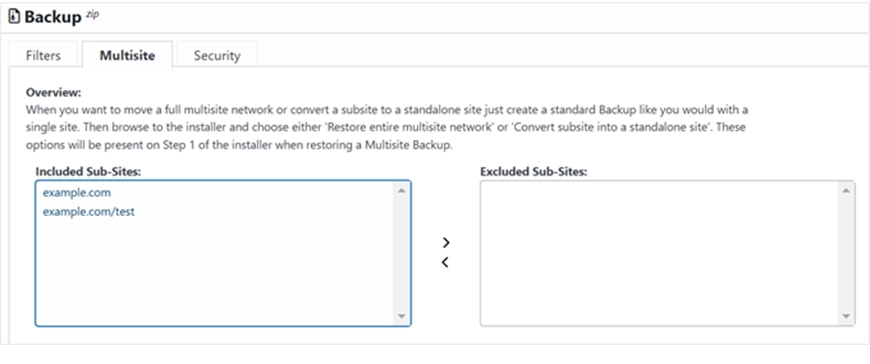
The plugin offers a few options for what to include in the backup:
The plugin offers a few options for what to include in the backup:
- Filters: Choose between a full backup, a database-only backup, or a media-only backup.
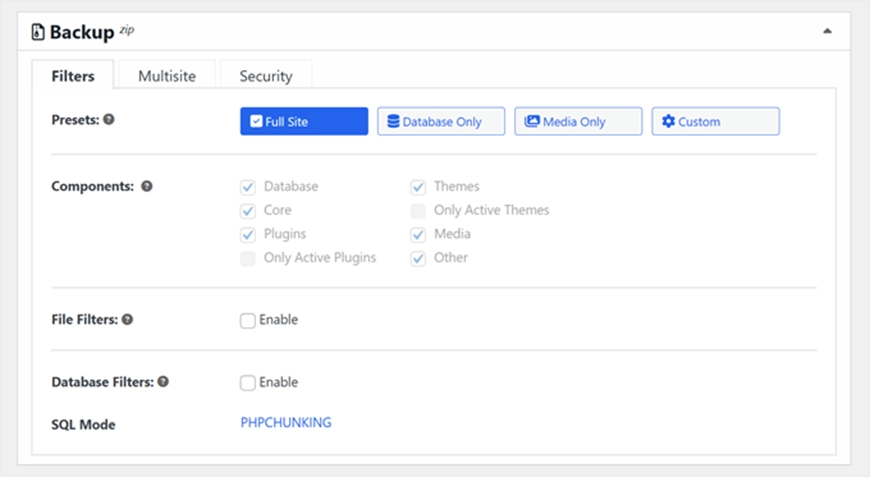
- Multisite Controls: Pick specific subsites if you don’t want the whole network backed up.
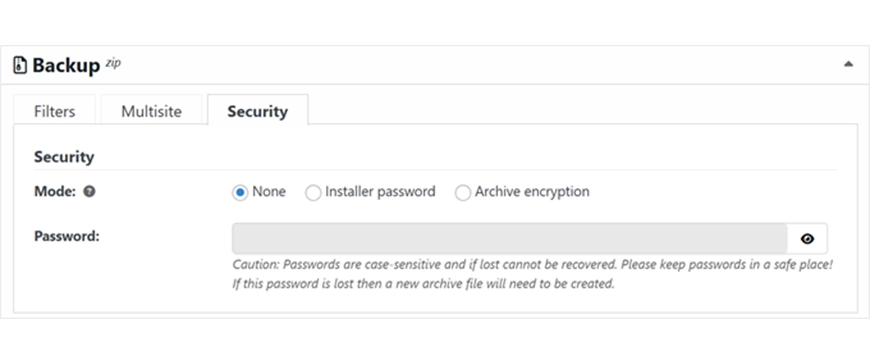
- Security: Add encryption or a password to protect your backup file.
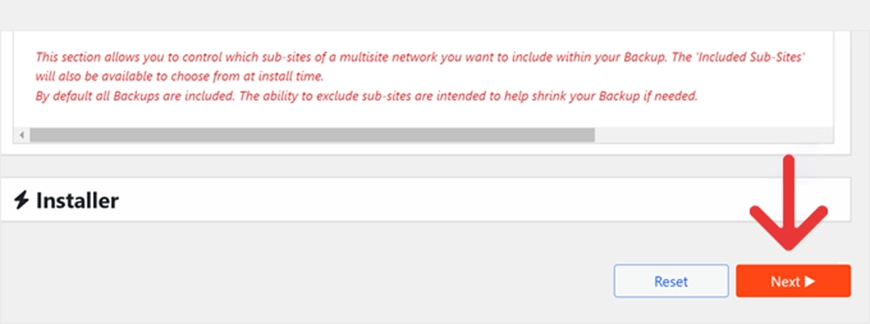
Once your choices are set, click Next. The plugin will scan your network to ensure everything is functioning properly.
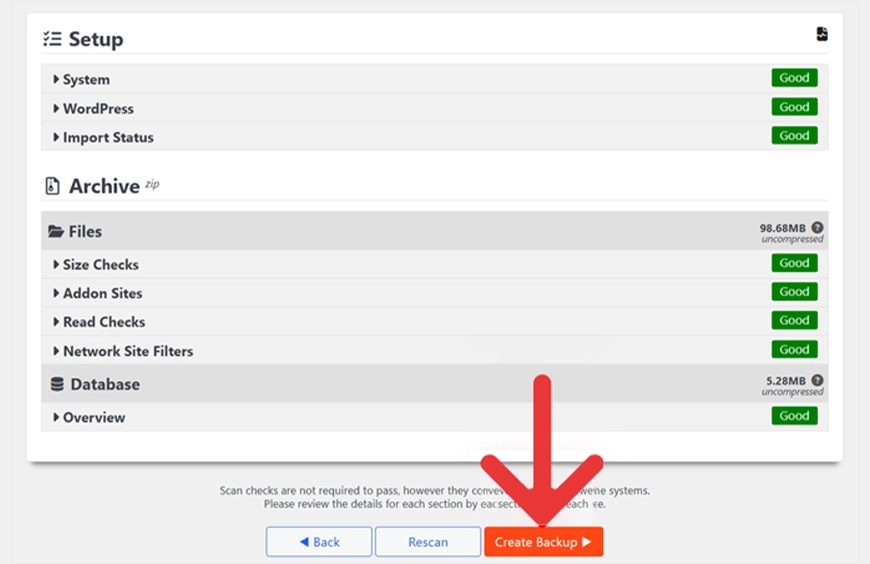
The plugin will check the WordPress multisite network. If any issues are found, the plugin will add a “Notice” label next to the element. You can resolve the issue. If all checks look good, press Create Backup.
When the backup finishes, you’ll see it listed on your dashboard. Our experts recommend downloading it to your computer to keep a safe offline copy.
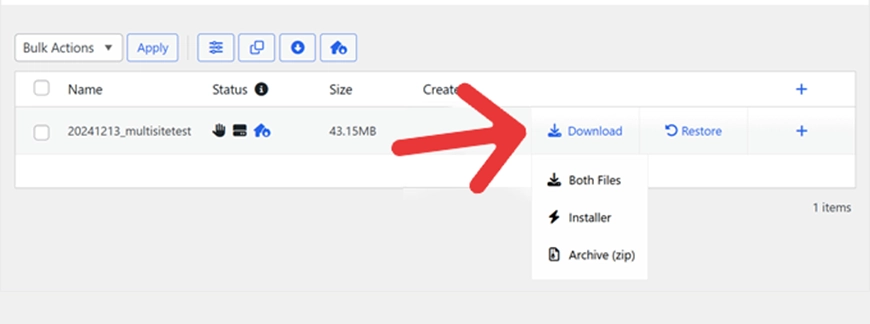
Restoring a Multisite Backup
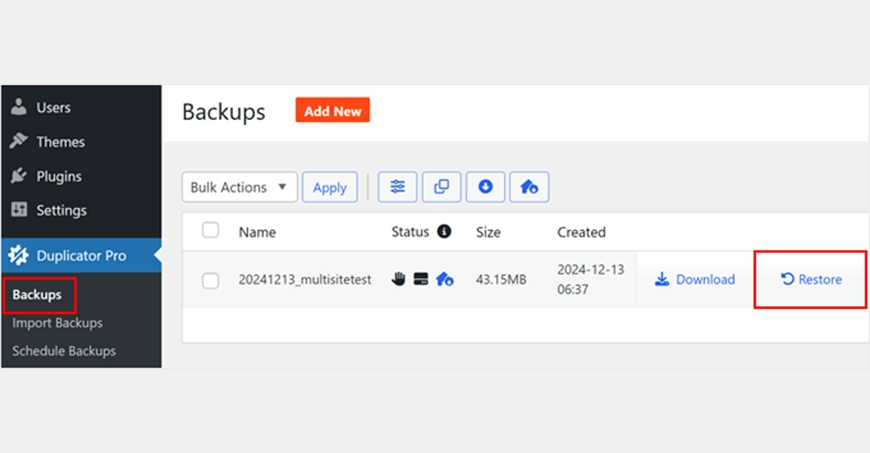
To restore a backup, go back to the Backups section. Find the backup you want and click Restore.
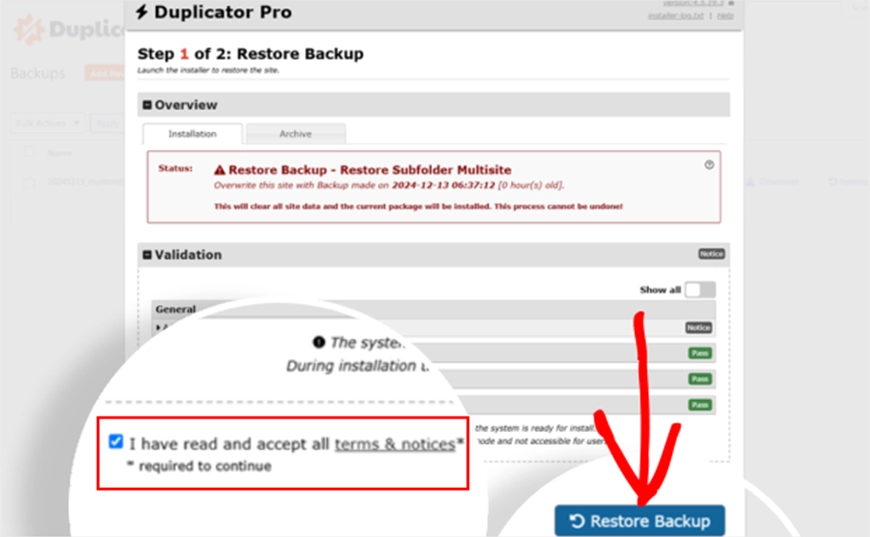
A pop-up will display the archive’s contents. If everything appears to be in order, accept the terms and conditions and start the recovery process.
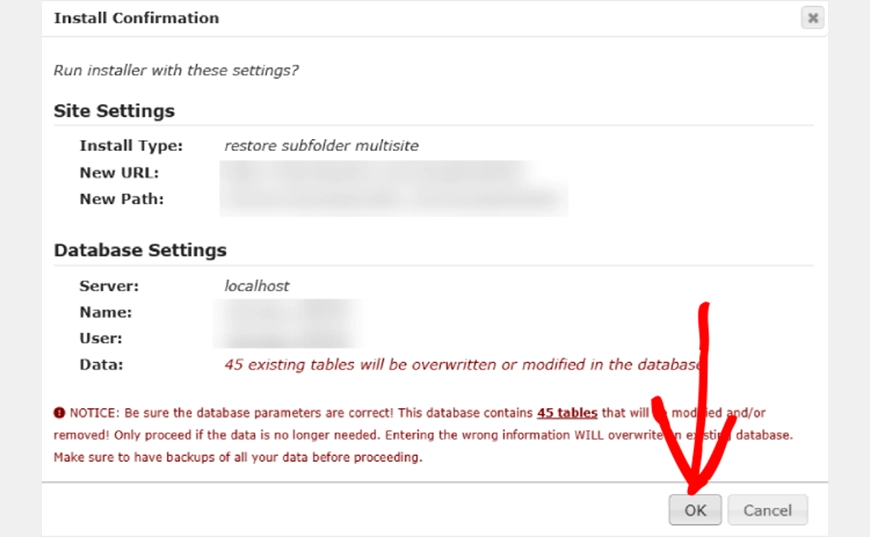
You’ll see another pop-up asking to confirm if you’re running the installer with new settings. Click ‘OK.’
When the restore is done, log back into your site by clicking the ‘Admin Login’ button. Then, clean up unused installer files. – Check the box that says “Auto delete installer files after login to secure site (recommended).”
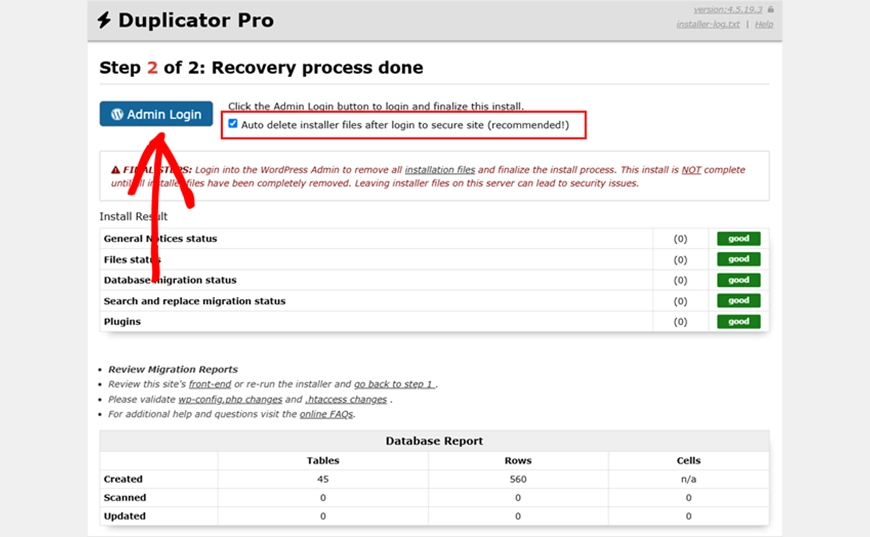
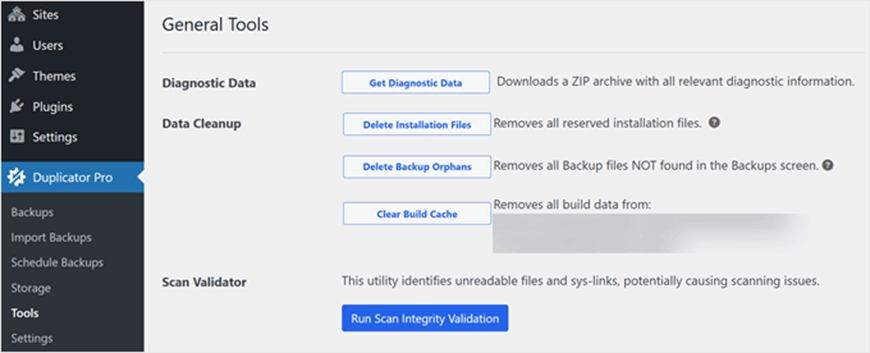
After you log in, Duplicator will direct you to Duplicator Pro Tools, where you can perform some final checks.
We recommend using the buttons to clear the build cache, erase backup orphans, and remove installation files just to be safe. This guarantees that everything functions properly and to helps clean up your restored site.
Your network should now be fully restored.
What Our Developer Says About WordPress Multisite Backups
“Most issues in a Multisite network aren’t random. They occur due to plugin conflicts, incorrect domain settings, or a small setting being overlooked. Catch problems early and keep a clean testing routine. By staying ahead of updates and monitoring your logs, your network remains stable and much easier to manage. It’s the small habits that save you from big headaches.”
Troubleshooting Common Issues on a Multisite Network
Managing a multisite setup is usually trouble-free, but problems occasionally arise. Most issues follow familiar patterns. Below are ways to identify and resolve the most common problems on a WordPress Multisite network.
Plugin Conflicts
If something breaks after an update, a plugin might be the reason. Disable plugins one by one to identify the culprit. Then, Update, reinstall, or replace it with a more stable alternative. Maintaining a small staging site allows you to test changes before deploying them to the network.
User Permission Mix-ups
User permissions can become unsynced across sites, especially when you’re running many plugins. Regularly review user roles and maintain a consistent set of permissions. Tools that centralize user management can save time and prevent confusion.
Domain Mapping & Subdomain Issues
When domains fail to load, first check the DNS. Most failures come from missing or incorrect records. Clear caches, verify SSL settings, and ensure that you add subdomains appropriately to your host.
Site Errors & Crashes
If a site suddenly stops responding, start by disabling all plugins. Then switch to a default theme. This helps you understand whether the issue is in your theme, a plugin, or the server. Always check your error logs. They’ll help you find the root cause faster.
Theme-Related Problems
A broken theme can take down a single site or the whole network. Ensure everything is up to date, and test theme changes on a staging site. If a theme fails only on one site, switch to a default theme to identify the issue.
Database Sync Issues
If the data appears misplaced or updates are slow, your database may not be syncing properly. Check your configuration, verify connectivity, and maintain frequent backups. When issues arise, restoring a clean backup is often the fastest solution.
Email & Notification Failures
Emails not sending is a common multisite issue. Verify your SMTP settings and consider using a dedicated email service to improve delivery reliability. Test messages regularly and monitor spam filters to ensure users actually receive them.
In short, a multisite network can run smoothly, but issues like plugin conflicts, domain errors, and broken themes still occur from time to time. Most problems can be fixed quickly and without disruption. Check plugins, review DNS and SSL settings, monitor permissions, and keep backups.
Let’s Summarize
When you use the WordPress Multisite setup, you can manage multiple sites from a single dashboard. However, it requires careful handling. Backups, updates, and routine checks play a crucial role in maintaining network stability. Problems can arise, but the cause is often familiar, like plugin conflicts, domains not resolving, or themes falling out of sync. Knowing where to look saves time and keeps your sites stable.
With a backup plan, a clean staging setup, and consistent log monitoring, you can avoid most issues. With a bit of discipline, you can keep your entire network running smoothly.
If you want expert assistance to manage, build, or refine your Multisite setup, you should consider partnering with an experienced WordPress development agency.
FAQs on WordPress Multisite Backup
Can you export an entire WordPress site?
Yes, you can export a full WordPress site. WordPress has a built-in export tool that lets you download content like posts, pages, and media.
What are the challenges of WordPress multisite?
Multisite has its own challenges. One issue can affect all your sites since they share the same installation. Plugin or theme issues can bring down the entire network. It also requires careful user management and more technical knowledge for updates, backups, and server settings. Performance can slow if the network grows large without proper optimization.
How to convert WordPress multisite to a single site?
Converting a multisite to a single site takes careful planning. You need to export the subsite’s content via the WordPress export tool and move its database and files to a fresh WordPress install. Themes and plugins may need manual adjustments. It’s best done on a staging site first to avoid downtime.
Table of Contents