
Quick Summary: A WordPress social media plugin that handles auto-posting and shares your new content to connected accounts without manual work. This guide compares five options: Social Auto Poster, Jetpack Social, Blog2Social, SchedulePress and Revive Social. Choose by the networks you post to, the workflow you need, the real yearly cost, and how often the plugin is updated, then test it first.
Sharing every new post manually across four or five networks is slow, and most of it is repeat work. Write a caption, resize an image, paste a link, then do it all again on the next platform. Over a month, that adds up to hours, and some posts never get shared at all.
A WordPress social media plugin that handles auto posting fixes this. Once your accounts are connected, an auto post to social media WordPress plugin sends each new post out as soon as it goes live, or at a time you set. Some also reshare older posts, so good content keeps earning traffic.
A social auto poster plugin is a WordPress tool that publishes your content to connected social media accounts without manual work. A WordPress development company can help configure the plugin to connect each account once, allowing it to share new posts, pages, or products using a caption template you set.
What is a Social Media Auto Poster Plugin?
A social auto poster plugin is a WordPress tool that publishes your content to connected social media accounts without manual work. You link each account once, and the plugin shares new posts, pages, or products using a caption template you set.
How Does the Social Media Auto Poster Plugin Work?
There are four easy steps:
- Connect your accounts. The plugin talks to each network through its official API. You log in and approve access. Some plugins offer one-click login. Others ask you to create a developer app on the network first, which is usually the hardest part of setup.
- Choose what to share. You pick the networks and the content types, such as posts, pages, custom post types, or WooCommerce products. Many plugins also let you filter by category or tag.
- Build a caption template. You combine the title, excerpt, link, featured image, and hashtags. Most plugins let you change the template for each network, since a LinkedIn caption and an X post rarely read the same.
- Publish. When you hit publish in WordPress, the plugin sends the post to your accounts or adds it to a queue.
Most auto poster plugins let you have:
- A different caption and image per network
- Tracking tags (UTM) added to each link
- A per-post override in the editor, so one post can skip a network
- A log that shows what was sent and what failed
These types of plugins start paying off once you publish often or post to more than one network. If you share a couple of posts a month on a single platform, that platform’s own scheduler may be enough.
Social Media Plugins for Auto Posting at a Glance
Let’s take a quick look at five auto-posting plugins side by side.
| Plugins | Best For | Pricing | Ratings |
|---|---|---|---|
| Social Auto Poster | Store owners and agencies posting products and blog content to 10+ networks | Starts from $49/yr for a single site | 4.83/5 (185) |
| Jetpack Social | Small sites that want a simple, no-cost start | $29/mo | 3.3/5 (74) |
| Blog2Social | Bloggers and small teams who want a content calendar and wide network support | Pro $8/mo | 4.5/5 (2,095) |
| SchedulePress | Editorial teams that plan posts on a calendar and share them to social | $49/yr | 4.6/5 (201) |
| Revive Social | Sites that want to reshare older, evergreen posts | $129/yr | 4.0/5 (557) |
Top 5 Latest WordPress Social Media Plugins for Auto Posting
These WordPress plugins automatically share your content on social networks. Each is reviewed for features, pros, cons, pricing, and ratings, so you can compare them.
1. Social Auto Poster
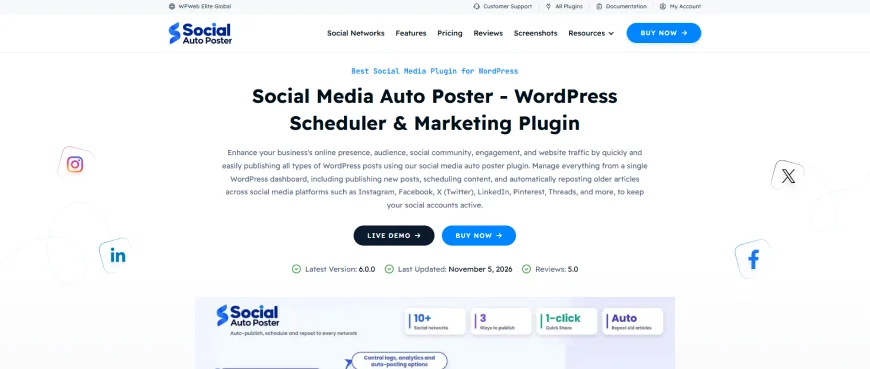
Social Auto Poster is a WordPress social media auto poster plugin from WPWeb that shares your content to social networks from one dashboard. It connects to more than 10 platforms, including Facebook, Instagram, X, LinkedIn, Pinterest, Threads, YouTube, Reddit, Telegram, and Google Business Profile.
You can post right after publishing, schedule shares, or bring back older articles. The company reports over 20,000 customers, and the latest version, 6.0.0, came out on November 5, 2026.
Key features
- Auto and instant sharing: Sends new posts and pages to your accounts when you publish, or at a time you set.
- Reposting: Reshares older content, such as your most-clicked articles, so past posts keep bringing traffic.
- Content types: Works with posts, pages, WooCommerce products, and any custom post type.
- Message control: Builds captions from the title, link, mentions, emojis, and featured image. It can also create hashtags from your tags and categories.
- Rules and tracking: Lets you include or exclude categories, add UTM tags for Google Analytics, and check posting logs for failed shares.
Pros
- Verified buyers praise the support team repeatedly. One said the team helped even after their support period had ended.
- Buyers describe setup as easy, and one said they expected it to be difficult.
- There is no limit on connected social accounts, and the Agency plan covers unlimited sites.
- One reviewer praised the code quality and the focus on performance over looks.
Cons
- There is no free version, so you buy before you can test it.
- One buyer said the interface could use a visual refresh.
- Connections depend on each network’s API rules, which change often. One buyer noted that Facebook changes needed fixes from the team.
- Updates and premium support cover one year per license, so you need to plan for renewal.
Pricing: $49/yr for a single site, $149/yr for 5 sites, $249/ for unlimited sites
Rating: 4.83/5 (185)
2. Jetpack Social
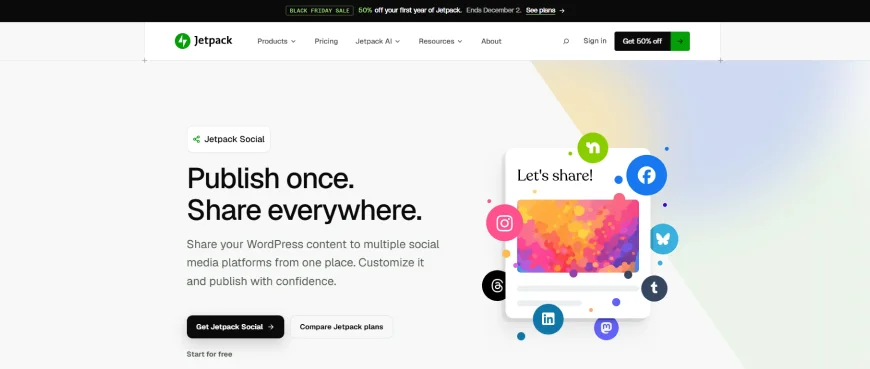
Jetpack Social is a social auto-posting plugin from Automattic, the company behind WordPress.com. It sends your posts to Facebook Pages, Instagram Business, Threads, Bluesky, LinkedIn, Mastodon, Nextdoor, and Tumblr.
You can share when you publish or schedule a share for later, and you can see a preview before anything goes out. More than 30,000 sites use it, and the free plan covers the basics.
Key features
- Auto-share and scheduling: Shares new posts when you publish, or at a later time. A confirmation step lets you proofread before it goes live.
- Previews and resharing: Shows how a post will look on each network. You can also reshare posts that are already published.
- Per-network messages: Lets you write a different message for each connected account and save reusable templates (paid plan).
- Custom media: Adds your own images and videos to a share. The Social Image Generator creates share images with text overlays (paid plan).
- Social Notes: Posts short updates from your WordPress dashboard without writing a blog post.
Pros
- The free plan includes auto-sharing, previews, scheduling, and resharing.
- It supports newer networks such as Threads, Bluesky and Mastodon.
- Sharing options sit inside the post editor, so there is no separate dashboard to learn.
- Automattic updates it often. Version 10.0.0 came out on October 14, 2026.
Cons
- Different messages per network and custom images or videos require the paid plan.
- X (Twitter) is not on the list of supported networks.
- It connects only to Facebook Pages and Instagram Business accounts. A reviewer reported that personal accounts do not work.
- The rating is low, and several reviewers say the plugin keeps disconnecting from their accounts.
Pricing: $29/month
Rating: 3.3/5 (74)
3. Blog2Social
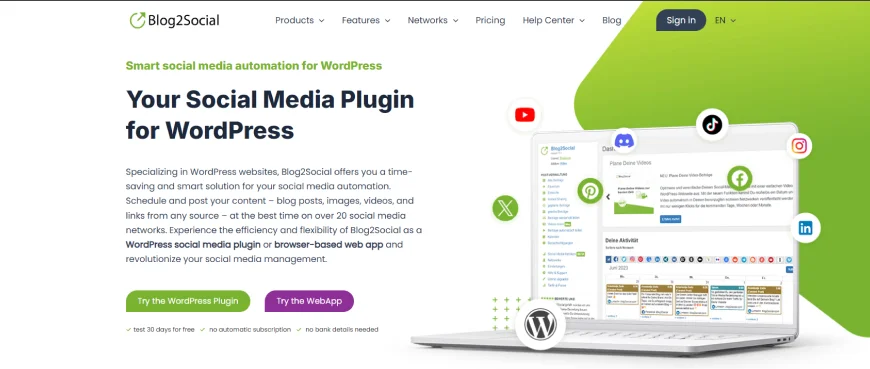
Blog2Social is a social auto poster plugin from Adenion that auto-posts and schedules content on more than 20 networks. Besides WordPress posts, you can share links, images, and videos from other sources. It has a drag-and-drop calendar and a Best Time Manager that suggests posting times for each network. More than 40,000 sites use it, and the plugin also works as a browser-based web app.
Key features
- Autoposting: Shares new and updated posts automatically. It can also post items imported from RSS feeds (paid plans).
- Calendar and best times: Plan, edit, and reschedule posts by dragging them on a calendar. Preset best times help you choose when to post.
- Per-network editing: Change the text, hashtags, handles, emojis, images, and GIFs for each network. AI post templates let you set a prompt, tone, and writing style per network.
- Evergreen resharing: Puts older posts into a queue and shares them again on a schedule you define.
- Tracking and previews: Adds UTM parameters to links and lets you edit the Open Graph and X Card tags that control link previews.
Pros
- It covers more than 20 networks, including Instagram, Pinterest, TikTok, Discord, Mastodon, and Google Business Profile on paid plans.
- The free version already shares to Facebook, LinkedIn profiles, Threads, Bluesky, and Reddit.
- A 30-day premium trial needs no payment details and does not turn into a subscription automatically.
- It has a strong rating and regular updates. The latest version, 9.1.7, was released about a week ago.
Cons
- Auto posting is a paid feature. The free version is built for manual sharing.
- X posting is a separate add-on that costs extra, starting at $14.99/month for 70 posts.
- Some networks need a higher plan. Instagram and Pinterest start at Smart, Google Business Profile and Mastodon at Pro, and Telegram needs Business or an add-on.
- Each plan caps users and websites: 1 on Free, 2 on Smart, 5 on Pro, and 10 on Business. Every WordPress user who posts needs their own license.
Pricing: Free; Pro $8/mo
Rating: 4.5/5 (2,095)
4. SchedulePress
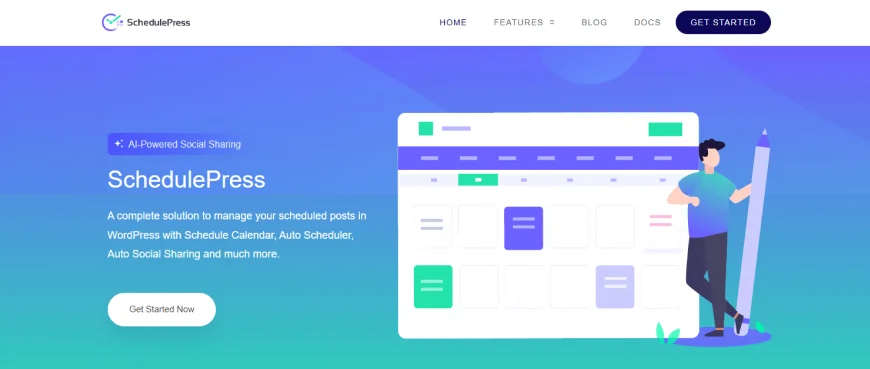
SchedulePress is a content planning plugin from WPDeveloper that also shares your posts on social media. Its main tool is a drag-and-drop calendar where you plan and reschedule posts. When a post goes live, the plugin shares it to your connected accounts.
It supports Facebook, X, LinkedIn, Pinterest, Instagram, Medium, and Threads, and works with the Classic editor, Gutenberg, and Elementor. More than 10,000 sites use it.
Key features
- Schedule calendar: Plan, move, and edit posts by dragging them on a calendar. You can also create new posts from it.
- Auto social sharing: Shares posts when they are published, at a scheduled time, or instantly with a Share Now option.
- Social templates: Sets one global caption template, or a custom message for each platform, right from the post editor.
- AI captions: Writes social captions in your chosen tone. This needs your own OpenAI API key.
- Scheduling tools (Pro): Auto Scheduler publishes posts at set intervals, Missed Schedule Handler publishes posts that WordPress skipped, and Advanced Schedule lets you schedule an update to a live post.
Pros
- The free version includes the calendar and sharing to seven networks, with one profile on each.
- It suits teams and multi-author blogs. A dashboard widget shows scheduled and draft posts, and email alerts tell authors about a post’s status.
- It works with the Classic editor, Gutenberg, and Elementor, so you can schedule from the tool you already use.
- It has a high rating, and reviewers often praise the support team.
Cons
- The free version allows one profile per network. Multiple profiles, LinkedIn pages, and Google Business Profile need Pro.
- The Auto Scheduler, Missed Schedule Handler, and Advanced Schedule are Pro features.
- AI captions use your own OpenAI key, so the AI cost is on top of the plugin price.
- Recent updates fixed several sharing problems, such as duplicate shares and LinkedIn disconnections, so check your logs after setup.
Pricing: $49/year
Rating: 4.6/5 (201)
5. Revive Social
Revive Social, earlier called Revive Old Post, is built around one idea: keep your content working by sharing it again. It posts new content when you publish and rotates older posts through a queue.
The free version connects to Facebook Pages and X. Pro adds Instagram, LinkedIn, Telegram, Mastodon, Bluesky, Google Business Profile, and more. WordPress.org shows more than 20,000 active installs.
Key features
- Auto posting and resharing: Shares new posts when you publish and cycles older posts through a queue. You set the gap between shares, the number of posts, and the age range of eligible posts.
- Content filters: Exclude categories, tags, custom taxonomies, single posts, or keywords. Pro lets you set filters for each account.
- Message variations (Pro): Rotates several captions and custom images for one post. Hashtags can come from tags, categories, or custom fields.
- Custom scheduling (Pro): Sets the days and times for each network and lets you edit the queue by hand.
- Tracking: Adds UTM tags, supports URL shorteners, and connects to Google Analytics.
Pros
- The free version auto-posts to Facebook Pages and X and reshares old posts, which many tools lock behind a paid plan.
- The filters give fine control over what gets shared, down to keywords and single posts.
- Pro supports WooCommerce products and custom post types.
- Pro can send posts to more than 30 extra networks through Zapier.
Cons
- Instagram, LinkedIn, Telegram, Mastodon, Bluesky, Google Business Profile and Facebook Groups need Pro.
- The rating is mixed. About one in six reviewers gave one star, and some report that connections fail.
- One reviewer said sale banners in the admin area hid the confirmation message after updating a post.
- Pro features turn off when your one-year license ends, and renewals cost the full price, not the intro price.
Pricing: $129/yr
Rating: 4.0/5 (557)
How to Choose the Right WordPress Social Media Auto Poster Plugins
The best social media auto poster plugin for WordPress is the one that fits your networks, posting volume and budget, and stays updated and light on your site. If you need help with setup or customization, you can hire WordPress developers to test your top pick on a staging site before you pay for a full year.
Work through the six questions below in order. Each one narrows the list.
Which Networks and Account Types Do You Need?
List every network you post to before you compare plugins. Then check which account types each plugin supports. Many plugins post to Facebook Pages but not personal profiles, and to Instagram business or creator accounts only. Check X separately, because the platform charges for API access and some plugins skip it or sell it as an extra.
What Posting Workflow do You Need?
Decide whether instant sharing on publish is enough. If not, look for scheduling, a content calendar or resharing of older posts. Store owners should confirm support for WooCommerce products and custom post types. Also look at caption control. A LinkedIn update and an X post work best with different text, so per-network captions, hashtags and UTM tags matter.
How Does the Plugin Connect, and How Will You Know When a Share Fails?
Some plugins offer one-click login. Others ask you to create a developer app on each network, which takes longer but gives you more control. Connections can expire or break when a network changes its rules, so the plugin should keep a log and warn you when a share fails. Without that, you may only notice weeks later.
What Will It Really Cost?
Add up the cost over three years, not just the first year. Check the renewal price, how many sites and accounts one license covers, and which networks or features need paid add-ons. Also check what stops working when a license expires, such as updates, support, or Pro features.
Is it Maintained, Secure, and Safe With Your Data?
Open the plugin’s WordPress.org page or changelog and look at three things: the last update date, the “tested up to” WordPress version, and the number of active installs. Read the one-star reviews first. Repeated complaints about broken connections tell you more than praise does.
Because you give the plugin access to your social accounts, read the privacy policy to see where tokens and content are stored and whether shares pass through the vendor’s servers. Download plugins only from WordPress.org or the vendor’s official site.
What do Support and Refunds Look Like?
Check how long support lasts and how quickly the team replies. A money-back window lets you test on real accounts without risk. The refund and trial periods for the plugins in this guide run from 14 to 30 days.
How Should You Test a Plugin Before You Commit?
- Install it on a staging or test site and connect one real account per network.
- Run PageSpeed Insights on a post before and after installing. An auto poster works in the background, so your score should not change. A drop points to scripts loading on your pages.
- Publish a test post with a featured image. Confirm that each network shows the right image, link and caption within a few minutes.
- Disconnect one account and see whether the plugin tells you.
Match your answers to the comparison table above to pick two candidates, then run this test on both before you buy.
Conclusion
A WordPress social media auto-posting plugin that handles posting gives you back the hours you spend copying links and captions into every network. The right one comes down to three things: where you post, how much control you want over timing and captions, and what you will pay over the next few years.
Start small if your needs are simple. A free plan is enough to learn how auto posting fits your routine. If you manage a store, several sites or many networks, a paid plugin usually saves more time than it costs.
Whichever you shortlist, install it on a test site and publish one post before you commit. Real results from your own accounts will tell you more than any feature list. If you need help in choosing one, get in touch with us.
FAQs on WordPress Social Media Plugin
Which is the best free social media plugin for WordPress?
SchedulePress has the strongest free version if you want a content calendar and sharing to several networks. Jetpack Social is the easiest free option for auto-sharing from the post editor. Revive Social’s free version suits resharing older posts, but only to Facebook Pages and X.
Will a social media plugin work with my WordPress theme?
Most auto posting plugins work with any theme, because they run in the background and do not change how your pages look. Theme and editor clashes show up mainly with share buttons and feed widgets, which add elements to your pages.
Your theme still affects one thing: the featured image and the Open Graph tags that control how a shared link looks. If your theme or SEO plugin already adds these tags, turn off the duplicate in one of them.
Does a social media auto poster share a post when I schedule it, and again when I update it?
Most plugins share a scheduled post when it goes live, not when you click Schedule. Updates usually do not trigger a new share unless you turn that option on, so fixing a typo will not repeat the post on your feeds. Some plugins also let you delay the share, for example, by a few days after publishing. Check these settings before you rely on them.
Why is my WordPress social media auto poster not posting to social media?
The usual cause is an expired or revoked connection, so reconnect the account in the plugin settings first. If that fails, read the plugin’s log for the error message and confirm the account type and permissions the network requires. Also check that WordPress scheduled tasks (WP-Cron) are running, and update the plugin, since vendors patch connections when a network changes its rules.
Does auto posting to social media help SEO?
Not directly. Google’s official position is that likes, shares, and follower counts are not used as direct ranking factors. Auto posting can still help indirectly, because social media works well for distributing content and attracting links. Bing is the exception: it has openly said it considers social signals in its rankings.
Table of Contents